Photo Mug Image Size and Resolution: How to Prepare Your Design
Calculate the pixel dimensions for your mug, choose PNG or JPEG, place the artwork inside the template, and export a sharp print file.
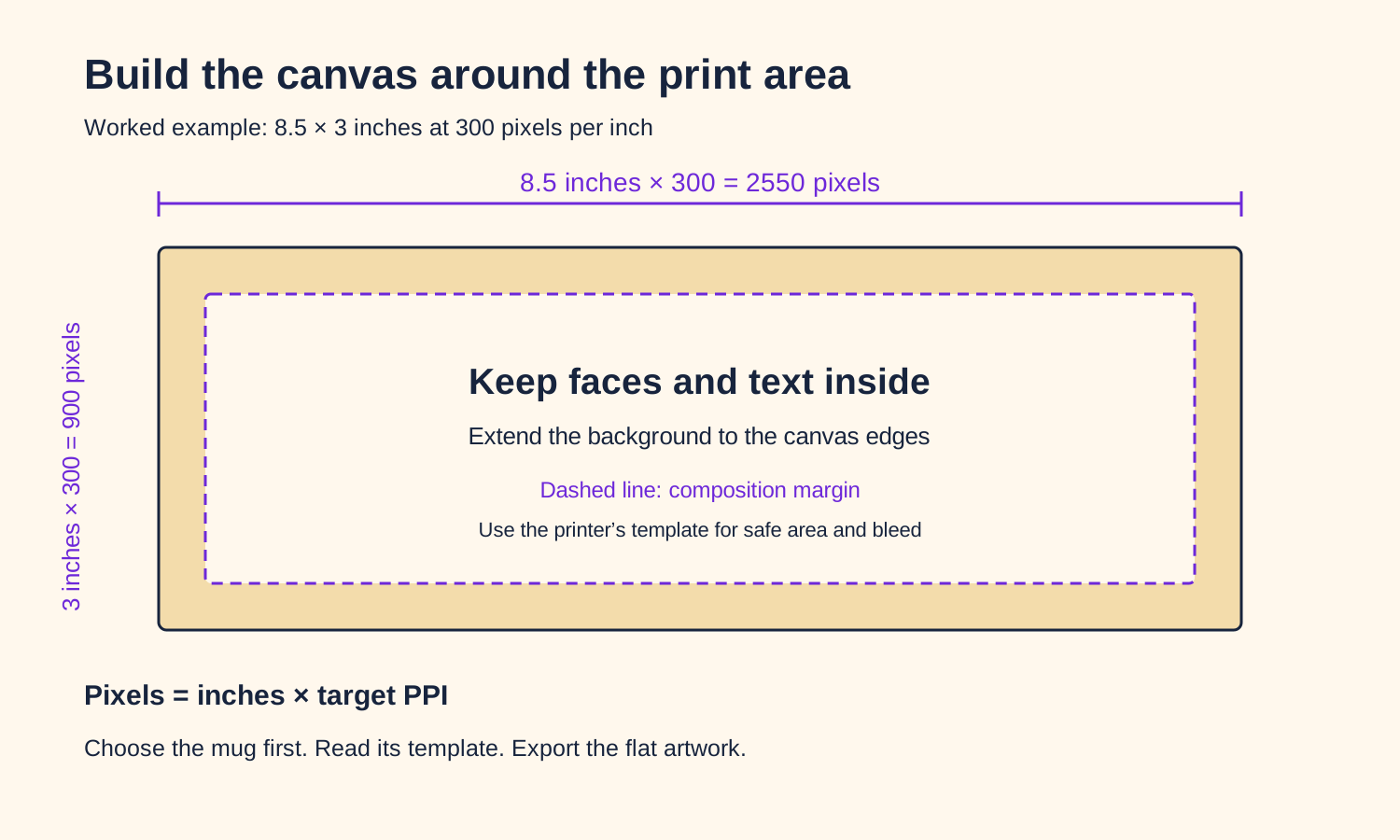
A sharp photo mug starts with a sharp image at the right size. Choose the mug, read its printable dimensions, and prepare the flat artwork for that space. Keep faces and text inside the safe area, export the design, and inspect it in the printer’s editor.
This guide explains the calculation, shows a worked example, and walks through the export and upload checks.
1. Find the printable area for your mug
Start with the product you will order. Read the print area, artwork guidelines, or template on its page. You need the printable width and height, not the mug’s height, diameter, or liquid capacity.
An 11 oz label tells you how much the mug holds. It does not tell you the image dimensions. For example, Guru Printers’ 11 oz mug has an 8.5 × 3 inch print area, while Spectracolor’s 11 oz mug lists an 8.25 × 3.5 inch maximum wrap area.
Write down these four details before creating your canvas:
- Printable width and height.
- Required resolution or pixel dimensions.
- Safe-area and bleed markings in the template.
- Accepted file formats and color settings.
When the printer supplies dimensions in pixels, use those values directly. When it supplies inches and a target resolution, calculate the pixels with the next step.
2. Calculate the pixel dimensions
Use this formula for each side of the artwork:
Pixels = inches × pixels per inch (PPI)
For an 8.5 × 3 inch print area at 300 PPI:
- Width: 8.5 × 300 = 2550 pixels.
- Height: 3 × 300 = 900 pixels.
- Canvas: 2550 × 900 pixels.
Worked example: extend the background to the canvas edges and keep the important content inside the composition margin. Follow the template’s actual safe-area and bleed lines.
Here are three calculations you can use when the corresponding dimensions match your selected print area:
| Print area | Target resolution | Canvas dimensions |
|---|---|---|
| 8.5 × 3 inches | 300 PPI | 2550 × 900 pixels |
| 8.25 × 3.5 inches | 300 PPI | 2475 × 1050 pixels |
| 9 × 3.5 inches | 300 PPI | 2700 × 1050 pixels |
The last row is a calculation example. Set your final canvas from the product’s template.
Printful’s sublimation guide identifies mugs as products that call for 300 DPI. Use the resolution specified by your chosen printer when exporting its template.
3. Understand pixels, PPI, and DPI
Pixels are the individual image elements in your file. A 2550 × 900 image contains 2550 pixels across and 900 pixels vertically.
PPI describes how many image pixels occupy one inch of the printed design. A 2550-pixel-wide image placed across 8.5 inches has 300 PPI.
DPI describes printer dots per inch. Printing services often use “DPI” when giving artwork-resolution instructions. For your file, calculate the required pixel dimensions from the requested print size and resolution.
Changing the resolution metadata from 72 to 300 does not create extra detail. A 600-pixel-wide image printed across 8.5 inches still has about 71 PPI. Start with a larger original file or reduce the image’s printed size.
For comparison:
| Image width | Printed width | Effective resolution |
|---|---|---|
| 600 pixels | 8.5 inches | About 71 PPI |
| 1275 pixels | 8.5 inches | 150 PPI |
| 2550 pixels | 8.5 inches | 300 PPI |
4. Use the original image or exported artwork
Use the camera original for a photographic mug. Use the downloaded design for an AI or illustrated mug. Export from the application that created the artwork instead of copying an image from a chat preview.
For MugMeme, download the design after reviewing it on the 3D mug. The exported flat image is the file to upload to the printer. Follow the iPhone design guide for those steps.
Keep these files separate:
- Print artwork: the flat photo, illustration, or wrap that goes on the mug.
- Product preview: a picture of the artwork displayed on a 3D mug.
- Editor screenshot: the app interface with buttons, borders, and controls.
Upload the first one. Keep the other two for reviewing and sharing the idea.
5. Fit the image without stretching it
Keep the image’s proportions when resizing. For a portrait in a wide wrap, extend the background or place the portrait in one section. Do not stretch the animal’s face or a person’s head to fill the width.
For example, a square pet portrait can sit on the left of the wrap with a short caption on the right. A wide landscape can fill the background while the important subject stays away from the ends.
In the Shutterfly screenshot below, the flat artwork fills the editor’s image area and the extra template text has been removed.
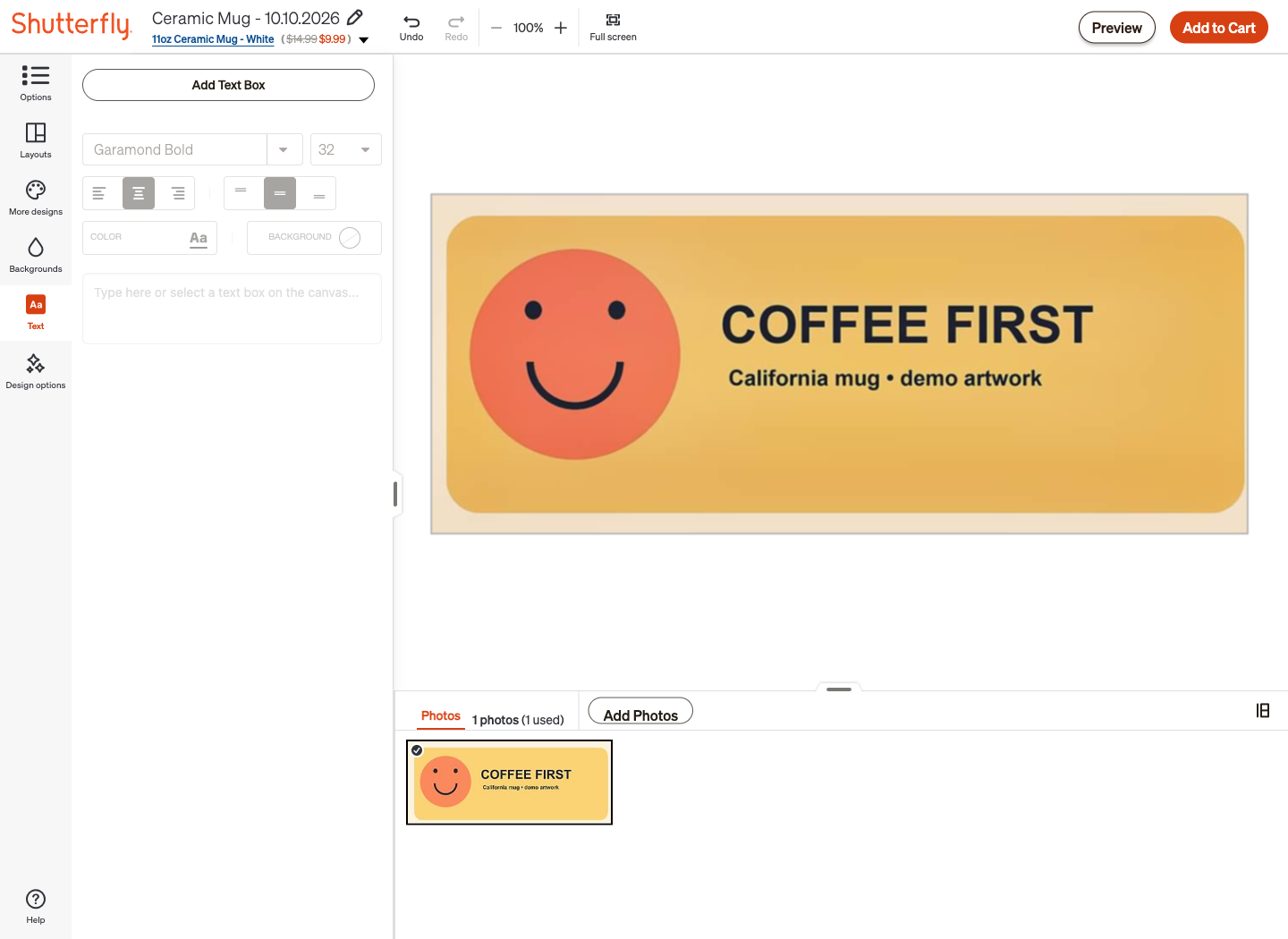
Inspect the flat design first: check the outer edges, caption, and subject placement.
Treat safe area and bleed as different instructions. The safe area keeps important content away from edges. Bleed extends the background beyond a cut or print boundary when the template requires it. Use the supplied template lines, and remove the guide layer before exporting.
6. Choose the right file format and background
For a photo, export a high-quality JPEG. For artwork with text and solid-color shapes, use PNG when the printer accepts it. Keep the original editing file so you can change the layout later.
For Shutterfly, use an RGB, 8-bit image. Its upload guide accepts JPEG and PNG and states that uploaded account images are stored as JPEG, which removes transparency. Set the background yourself before uploading a transparent design. Use white for a clean white-mug composition or choose the background color that belongs in the artwork.
A PDF is a print file for services that explicitly request one. Shutterfly’s photo upload does not accept PDF. Export the artwork as a supported image for its mug editor.
Printful’s file-preparation guide covers format, resolution, color profile, and product templates. Use those specifications for Printful orders.
7. Inspect the exported file before uploading
Open the final export at 100% zoom. Look at the eyes, fur, outlines, small text, and any graphic edges. Read every word and check that the dimensions match your intended canvas.
Use a clear filename such as milo-pet-mug-2550x900.png. Keep the original photo, editable artwork, and exported print file in the same project folder so you can identify them later.
Upload the file, then inspect the printer’s preview. Rotate the mug to see the artwork around the handle and on both sides.
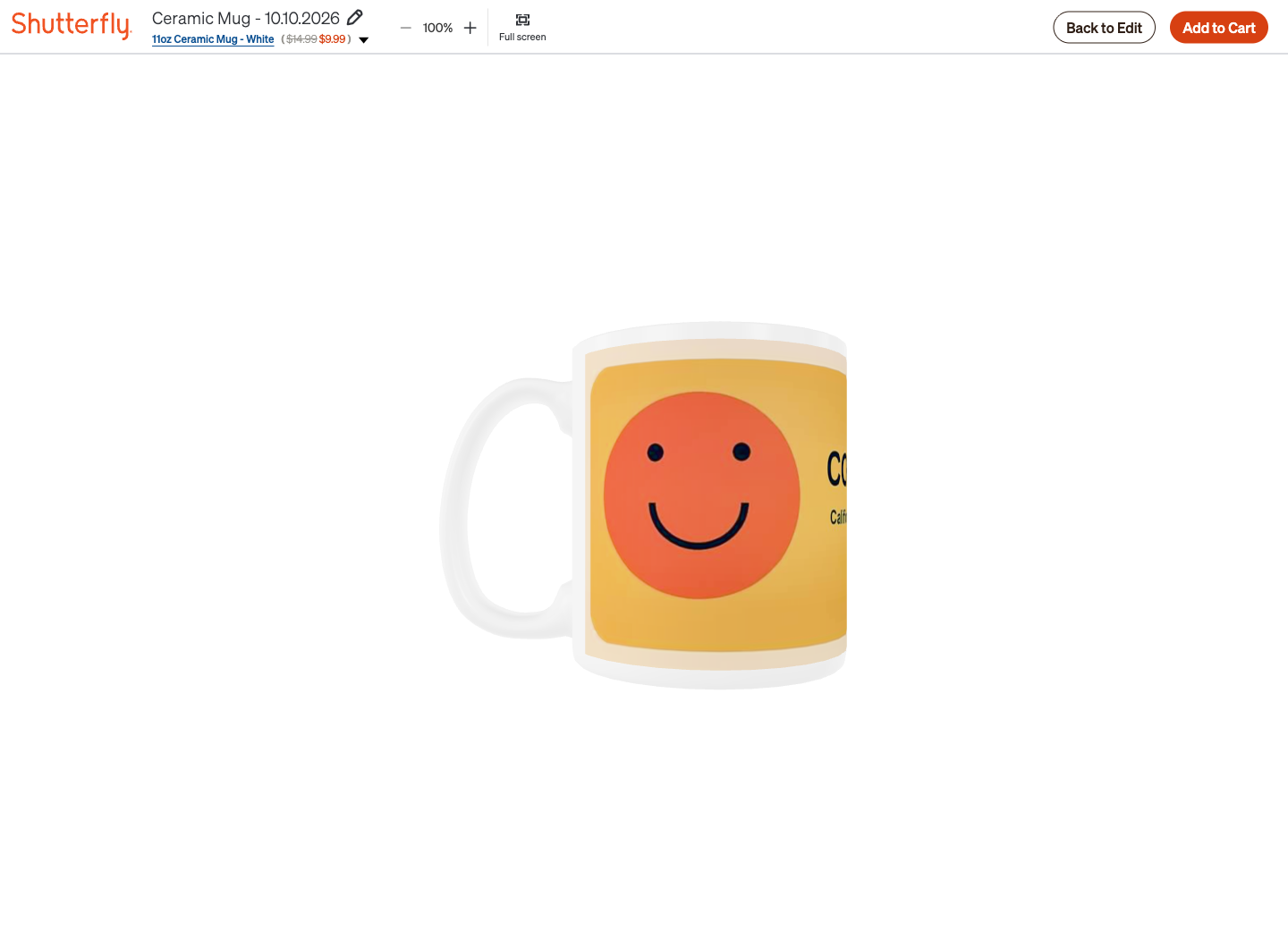
The flat composition becomes a curved print. Rotate the mug to inspect the full design.
Fix these problems before ordering
| Problem | Action |
|---|---|
| Low-resolution warning | Replace the file with the original high-resolution export or reduce the printed image size |
| Face looks too wide | Restore the original aspect ratio and extend the background instead |
| Ears or lettering are cut off | Reposition the artwork inside the template’s safe area |
| Extra text appears over the design | Delete the unused template text box |
| Transparent background changes on upload | Export the artwork with an explicit background color |
| Template markings appear in the image | Hide the guide layer and export again |
| Uploaded picture already shows a curved mug | Replace it with the flat design file |
Ready to print?
Use our Shutterfly ordering guide to upload the prepared file and complete the order. For a pet gift, start with the custom pet photo mug guide. For local services and home delivery, compare the California printing options.