How to Order a Mug with Your Own Design on Shutterfly
Upload your photo or MugMeme design to Shutterfly, remove template text, inspect the 3D preview, and order a mug for home delivery.
Have a photo, pet portrait, or finished MugMeme design ready to print? Shutterfly’s upload-your-own-design mug lets you place that artwork on a ceramic mug and order delivery to your home or a gift recipient.
Follow the steps below to choose the mug, upload the file, inspect the layout, and complete the order.
Before you start
Save the flat artwork on your phone or computer. Use a JPEG or PNG image, and give it a filename you will recognize in the file picker. If you created the design in MugMeme, download the finished image from the app.
Open the file once before ordering. Check the name, caption, and image quality. Upload the artwork itself, not a screenshot of the 3D mug.
For export settings, use our photo mug image size and resolution guide. For a gift featuring a dog or cat, follow the pet photo mug guide.
1. Open the upload-your-own-design mug
Go to Upload Your Own Design Photo Mug.
Choose the mug size and color. The product offers 11 oz and 15 oz options. Set the quantity to 1 for a single gift. Enter the recipient’s ZIP using Add your ZIP Code to see the arrival estimate.
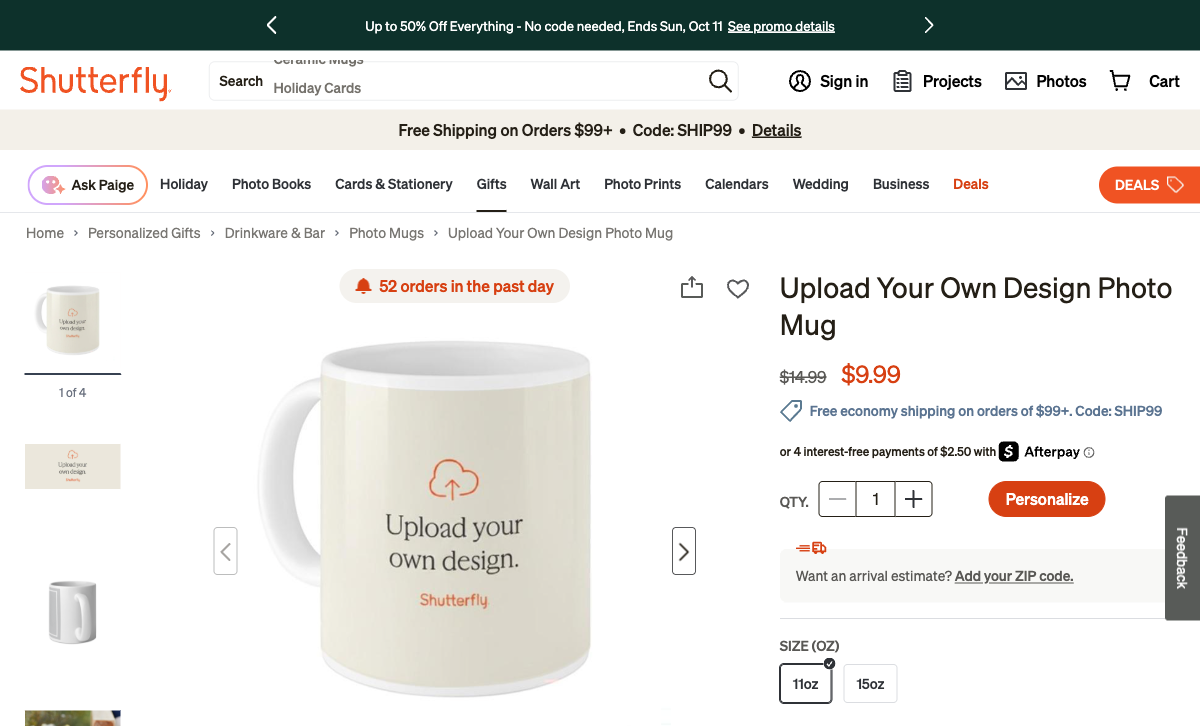
Choose the mug size and color, then open the editor.
For a portrait on a simple background, start with a white mug. For a design with a colored background, select the handle and interior color that suits it. Follow the product’s care instructions: the gold-rim/handle option requires hand washing and is not microwave safe.
2. Click Personalize
Click Personalize to open the design editor. Use the upload dialog to add the file from your device.
The example in this guide uses a wide Coffee First design with a smiley portrait and a caption. Use the same steps for a pet illustration, selfie design, or family photo.
3. Upload the image from your device
Select Upload Photos, locate your exported file, and choose it. Let the upload finish before making changes to the layout.
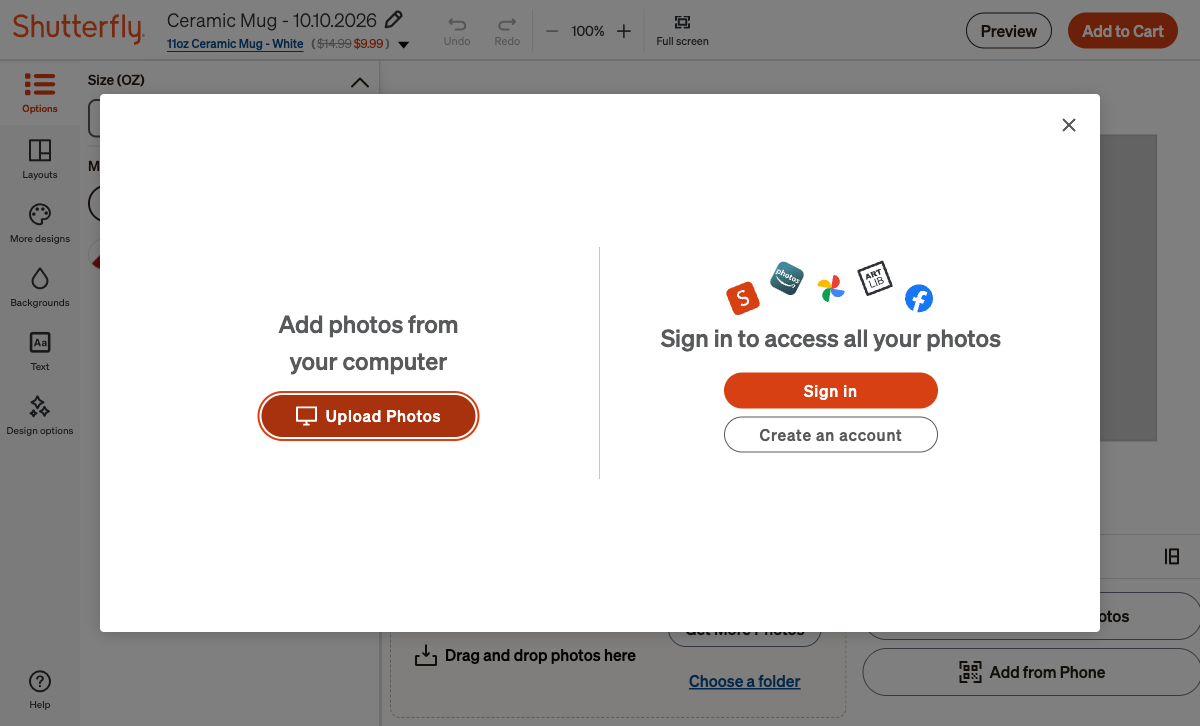
Select the exported image from your device.
On a computer, open the folder where you saved the design. On an iPhone, select the image from your available photo or file location. Choose the original export rather than a smaller copy saved from a message.
For the accepted formats and color settings, see Shutterfly’s upload guide. Before uploading artwork with transparency, give it the background you want printed: Shutterfly stores account images as JPEG and removes transparency.
4. Place the artwork in the photo area
After the file appears, inspect it in the editor. If the image is still in the photo tray, drag it into the photo area. Preserve its proportions as you position it.
Check these details:
- The whole face is visible, including the ears or top of the head.
- The caption has room on both sides.
- The background reaches the edges of the image area.
- No important feature is placed at the end of the wrap.
For a square portrait in a wide layout, use the layout controls to choose a suitable photo arrangement or prepare a wider canvas before uploading. Keep the person or pet’s face in its original proportions.
5. Remove the extra template text
The editor includes a text placeholder. If your uploaded design already contains its caption, delete the unused Add Text box. Otherwise, it will sit on top of your artwork.
Select the text box and use its delete control. To keep a separate caption, replace the placeholder with your own text and inspect its size and position.
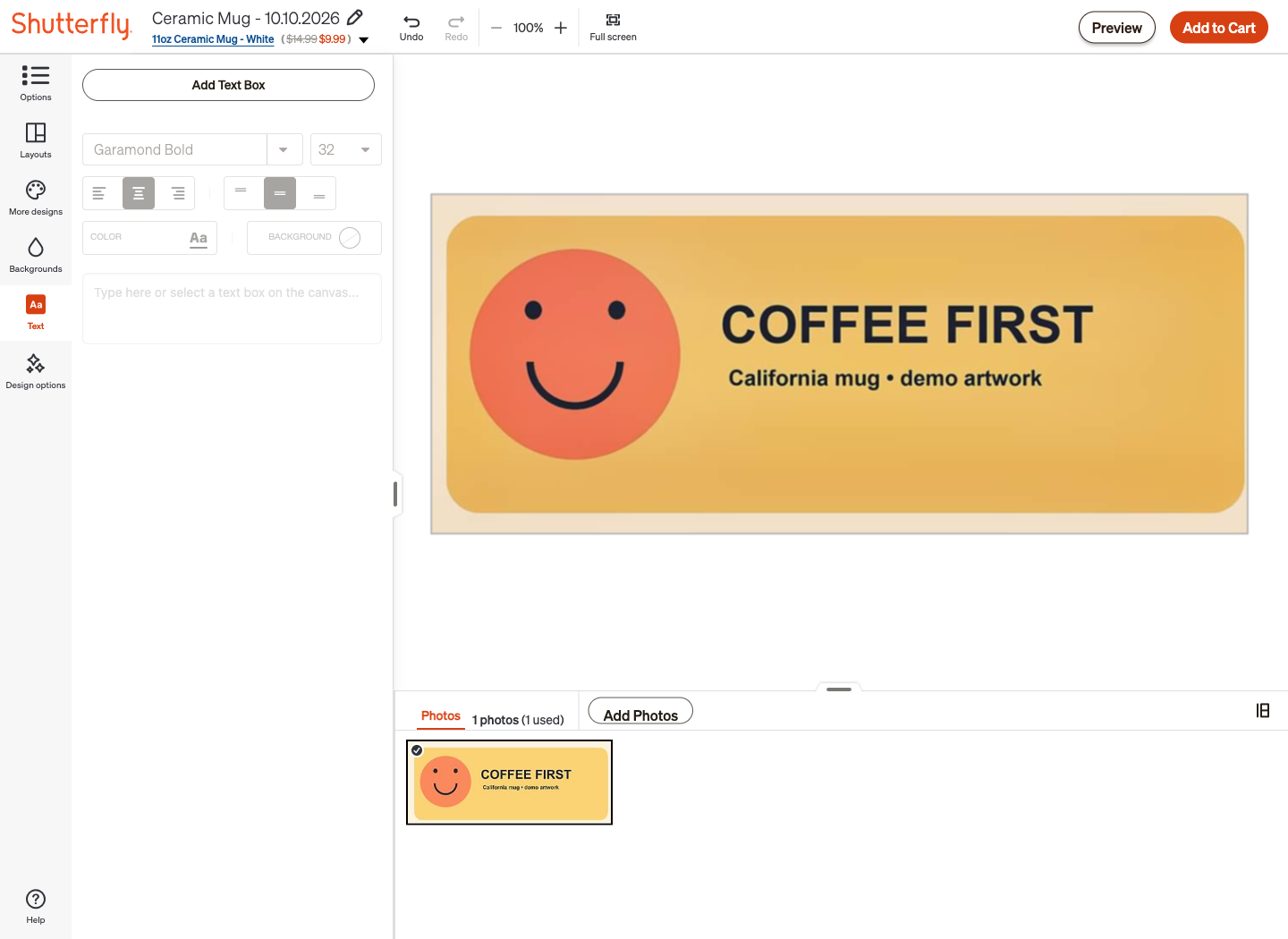
The finished flat layout contains the uploaded artwork without extra template text.
For our example, Coffee First is already part of the image, so the separate text box is removed. For a plain dog photo, keep a text box only if you want to add the dog’s name or a short caption.
6. Open Preview and rotate the mug
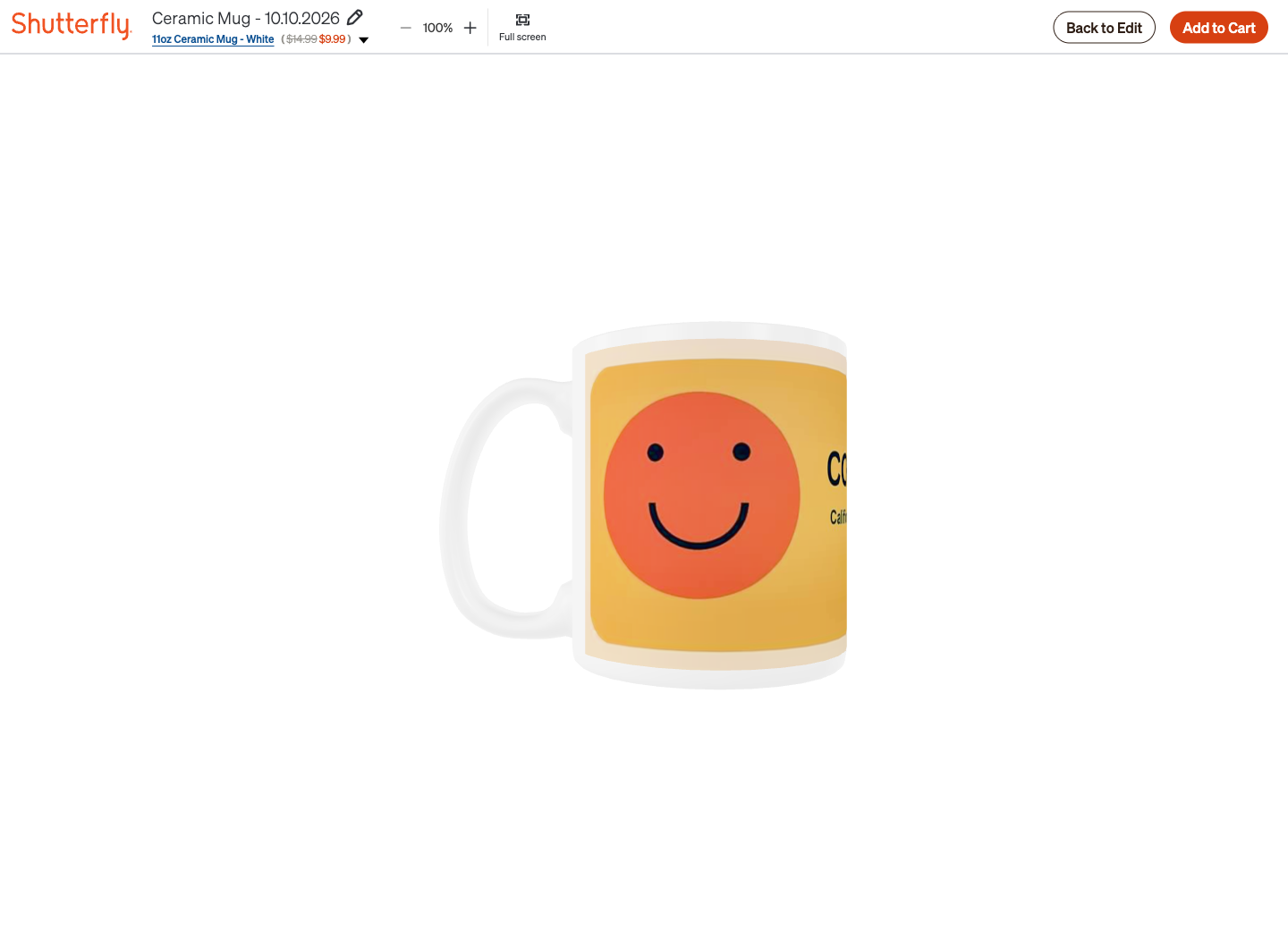
Click Preview. Drag the mug to rotate it and inspect the artwork around the curve. Look at the front, the opposite side, and the areas next to the handle.
Rotate the mug to see the portrait and caption around the curved surface.
Read the caption and check every face. If you need to reposition the image, select Back to Edit, make the change, and preview again.
Finish this step before moving to the cart. It is easier to correct the composition while the editor is open.
7. Add the mug to the cart and sign in
Select Add to Cart. Shutterfly opens the sign-in page when you create the design as a guest. Sign in to your account, or select Sign up to create one and continue with the design.
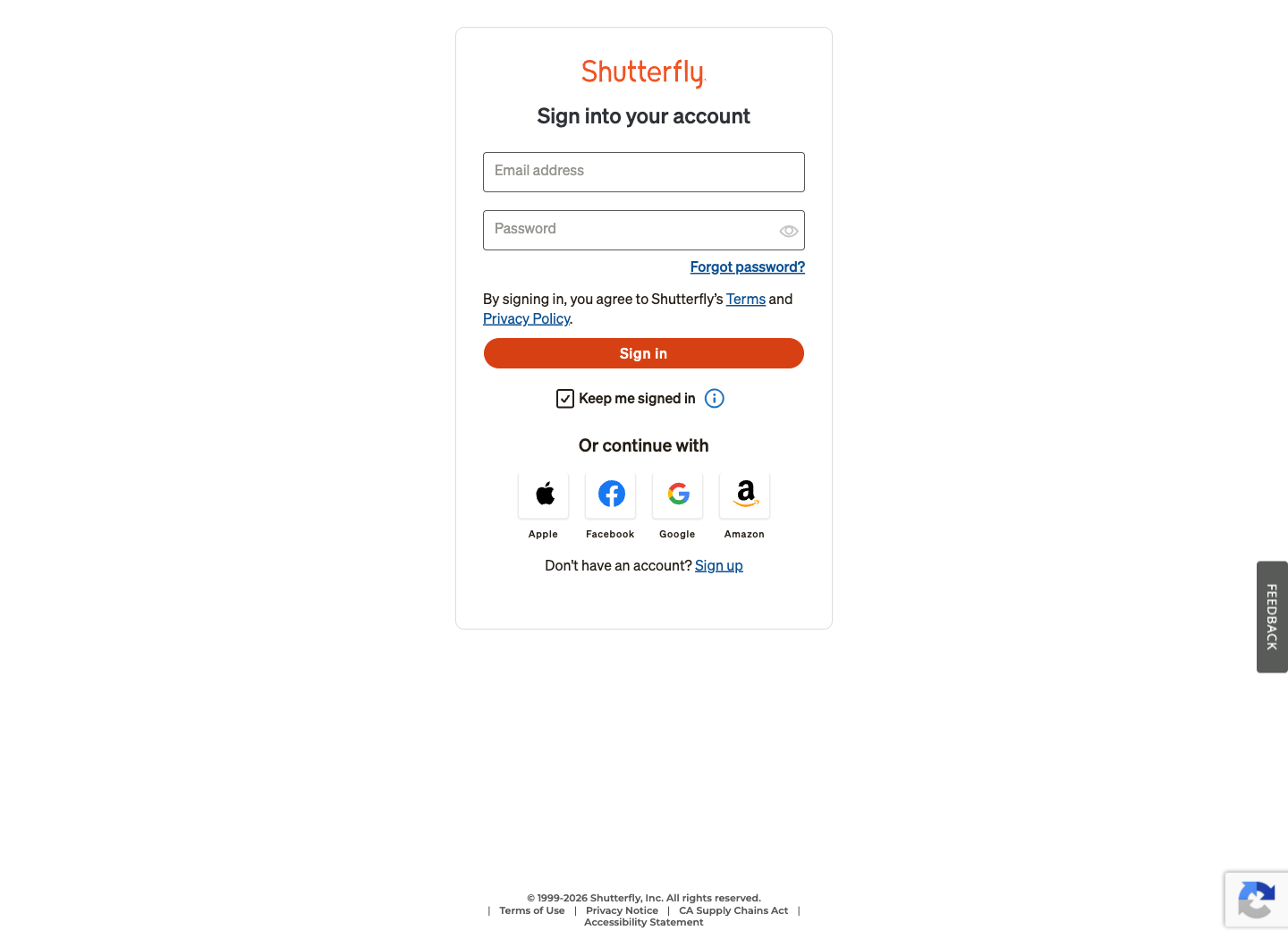
Sign in or create an account to continue the order.
In the cart, review the mug size, color, quantity, and design. Keep the quantity at one unless you want multiple copies of the same mug.
8. Enter the delivery address
Proceed to checkout and enter the recipient’s full name, street address, apartment or unit number, city, state, and ZIP code. For a California address, select California / CA as the state.
If you are sending a gift directly to someone else, use their shipping address. Enter your own billing details for payment.
Read the address once more before continuing. Check the apartment number and ZIP carefully so the package reaches the right destination.
9. Select shipping and apply your discount
Choose the delivery method using the arrival date shown for the order. Shutterfly’s shipping page lists these production-and-delivery windows:
| Shipping method | Production and delivery |
|---|---|
| Basic Economy | 6–10 business days |
| Standard | 5–7 business days |
| Expedited | 4–5 business days |
| Rush | 3–4 business days |
| Super Rush | 1–2 business days on eligible products |
Select from the methods offered in your cart. For a birthday or another fixed date, choose an option that arrives before the occasion.
Enter the promotion code in checkout, apply it, and review the updated total. Use this calculation:
Mug price × quantity + shipping + tax − discount = order total
Compare that full amount when choosing between printing services. For other providers, read the California mug printing and delivery guide.
10. Pay and save the order confirmation
Review the artwork, mug details, address, arrival date, and final total. Complete payment and save the confirmation email or order number.
Use the shipment notification to track delivery. When the mug arrives, inspect the ceramic, handle, print placement, and caption. Photograph any damaged item or printing error and contact Shutterfly support with the order number.
Quick fixes in the editor
The image is cropped
Go back to the editor and reposition the image. For a portrait that does not fit the current layout, choose another layout or prepare the artwork on a wider canvas. Keep the original face proportions.
Add Text appears on top of the design
Select the extra text box and delete it. Keep only the caption you intend to print.
The editor shows a low-resolution warning
Upload the full-resolution original or HD export. Use the image preparation guide to calculate the resolution at the intended print size.
The uploaded image shows a whole mug
Replace it with the flat artwork. A 3D preview is a picture of the product; the printer needs the image that goes on its surface.
I want another copy of the same design
Keep the finished project in your Shutterfly account and retain your exported artwork. Use the saved project when ordering more copies.